OFF-GRID · MESHCORE · CARDPUTER

Your mesh.
Your terminal.

A pocket-sized, keyboard-first companion interface for MeshCore. Read messages, chat privately and explore repeaters — all from your original M5Stack Cardputer.

✓ Field-tested with Heltec V3 and XIAO Wio MeshCore BLE companions.

Companion setup required: Configure your radio first using the official MeshCore app. NodePad cannot configure the Companion yet; it connects to an already configured MeshCore BLE Companion.

v2.2.6 BETAESP32-S3BLE CompanionNO WIFI REQUIRED IN USE

Independent community project. Not affiliated with M5Stack or MeshCore.

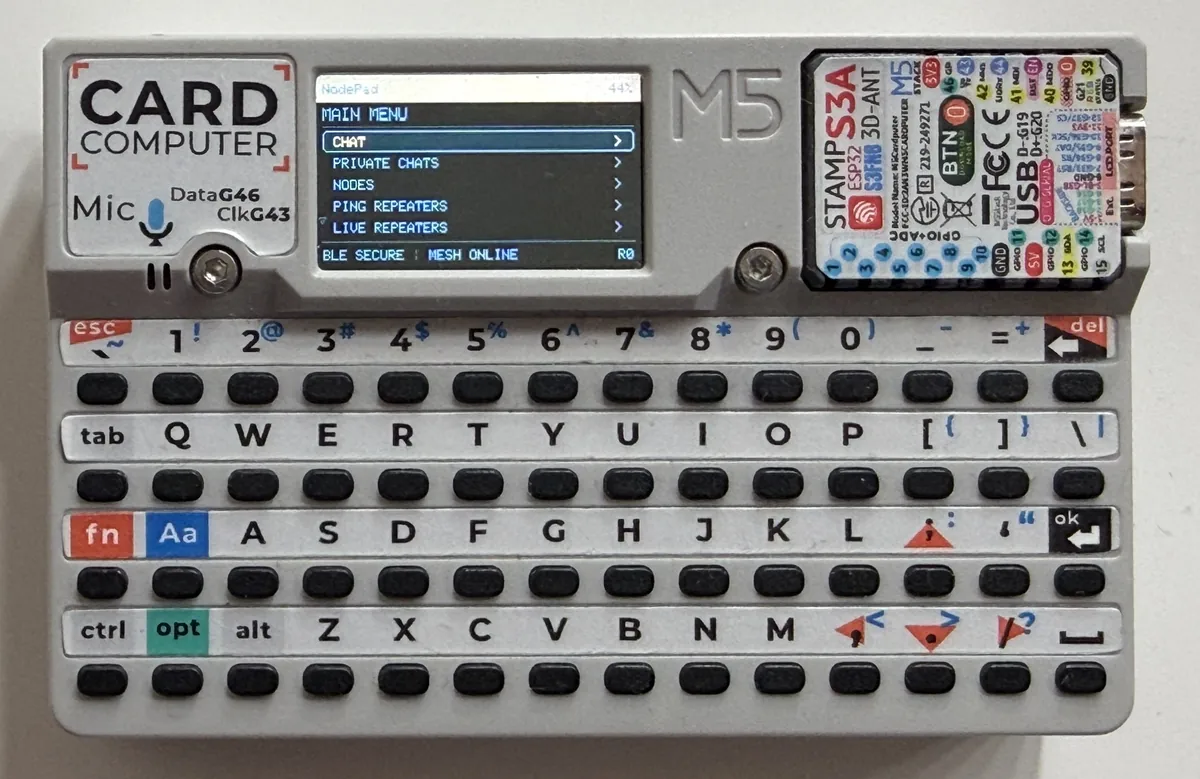
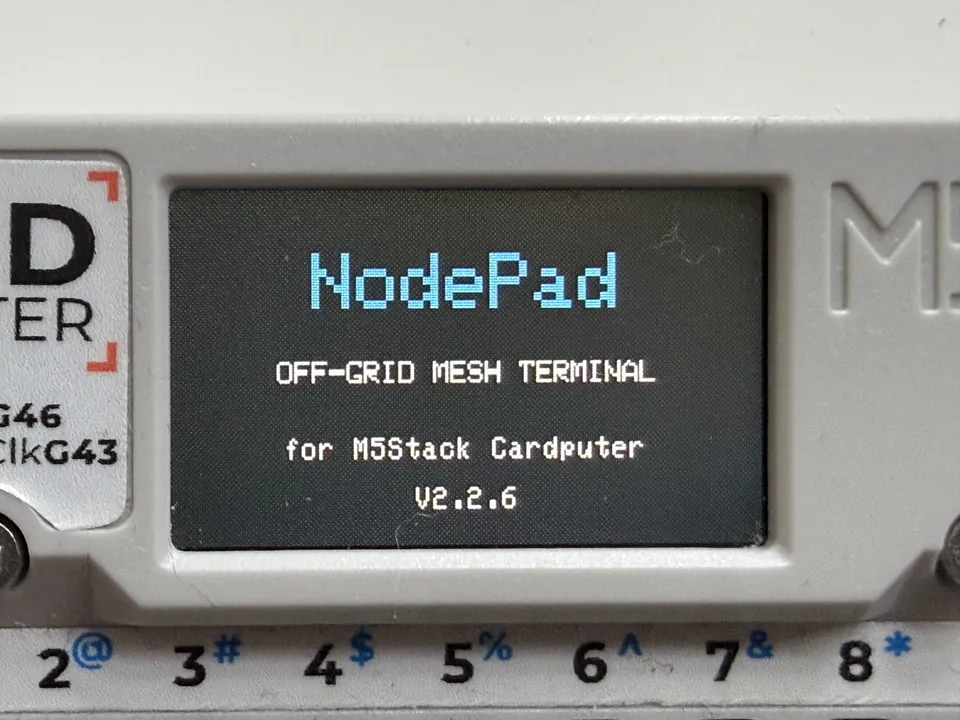
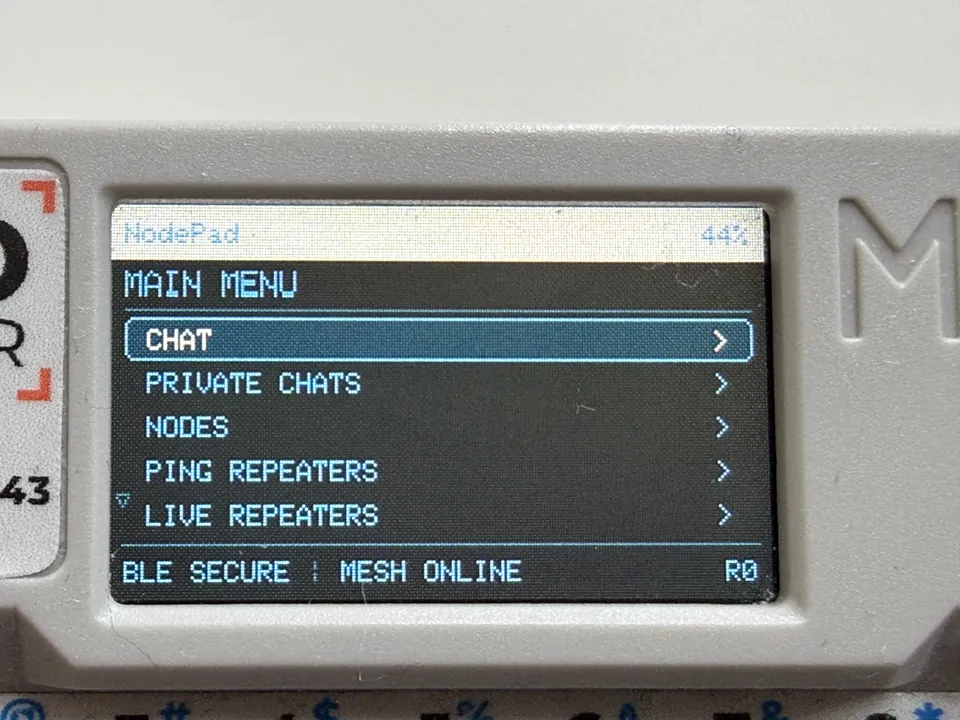
Real photograph of the original M5Stack Cardputer running the NodePad v2.2.6 main menu, photographed from the front.
NodePad on the real CardputerFIELD PHOTO
BUILT FOR THE FIELD

Everything you need, on a tiny screen.

NodePad runs on the Cardputer; a separate MeshCore Companion BLE radio provides the LoRa link.

⌨

Public + private chat

Compose public channel messages and direct messages with real keys.

◉

Live repeaters

Browse heard repeaters, request path discovery and view link information when available.

⌁

Bluetooth workflow

Select a MeshCore BLE Companion, enter its PIN and reconnect without a phone.

INSTALL IN YOUR BROWSER

Connect. Flash. Explore.

No Arduino IDE needed for installation. Use a USB-C data cable and a desktop browser with Web Serial support (Google Chrome or Microsoft Edge recommended). Brave may work if Web Serial is enabled.

Before installing: NodePad flashes only the Cardputer. Your separate MeshCore BLE Companion must already be configured using the official MeshCore app. NodePad cannot configure its LoRa/network settings or firmware.
Before you begin
  1. 01Use the original M5Stack Cardputer (ESP32-S3). This build has not been validated for Cardputer ADV or other boards.
  2. 02Connect the Cardputer using a USB-C data cable; close Arduino Serial Monitor and other tools using its port.
  3. 03First configure your MeshCore Companion BLE using the official MeshCore app. Disconnect that app before pairing NodePad after the Cardputer reboots.
NodePad v2.2.6 Beta

Firmware for original M5Stack Cardputer · ESP32-S3

Web Serial is not supported by this browser. Open the page on desktop Chrome or Edge. A secure HTTPS connection is required for USB flashing.

The installer will ask permission to access your selected USB serial device.

Beta firmware — read before flashing. Flash only on the original Cardputer. Back up your existing firmware and settings first: installation or flash erase may remove saved data. Do not unplug the cable while flashing. The author has successfully tested web installation on an original Cardputer; wider testing is still recommended.

Full flashing instructions ↗

AFTER INSTALLATION

Pair NodePad with your MeshCore Companion.

NodePad uses Bluetooth Low Energy to talk to a separate, already configured MeshCore Companion BLE radio, which handles LoRa. Configure that radio with the official MeshCore app first. NodePad currently does not configure Companion firmware, radio/network parameters or channels. This flow is for NodePad v2.2.6 Beta.

01

Configure the Companion first

Using the official MeshCore app, set up your Companion BLE radio and its required mesh/radio settings before using NodePad. Tested devices include Heltec V3 and XIAO Wio. Then disconnect the official app, leave the radio on and continue. Repeater or USB-only builds are not supported.

02

Select the radio

After boot, NodePad searches for Companions. On SELECT COMPANION, use W / S to highlight yours and Enter to select. The screen may connect automatically if a saved Companion is found.

03

Enter the BLE PIN

On PAIRING PIN, type the six-digit PIN configured on that Companion, then press Enter. The prefilled value is only a suggestion, not a universal PIN. After a successful connection, NodePad remembers the PIN locally for that radio.

04

Start using NodePad

Once paired and initialized, the main menu appears. Check for BLE SECURE and MESH ONLINE on screen, then explore public/private chats, nodes, adverts and repeater tools. Actual LoRa connectivity still depends on your network coverage.

Need help connecting?

On SELECT COMPANION, press R to rescan. If your device is missing, confirm it runs Companion BLE firmware and is not already connected to another app. To switch radios later, open System → Enter. For more, read Troubleshooting ↗.